
xCAD connectors for SOLIDWORKS, CATIA V5, Creo, NX, Inventor and AutoCAD
We connect supported desktop CAD to 3DEXPERIENCE through the applicable Collaborative Designer role and its CAD integration app. We confirm the CAD version, connector build, platform release, deployment and assigned roles before configuration, then investigate save, open, lock and revision failures between the CAD client and the platform.
Problems this covers
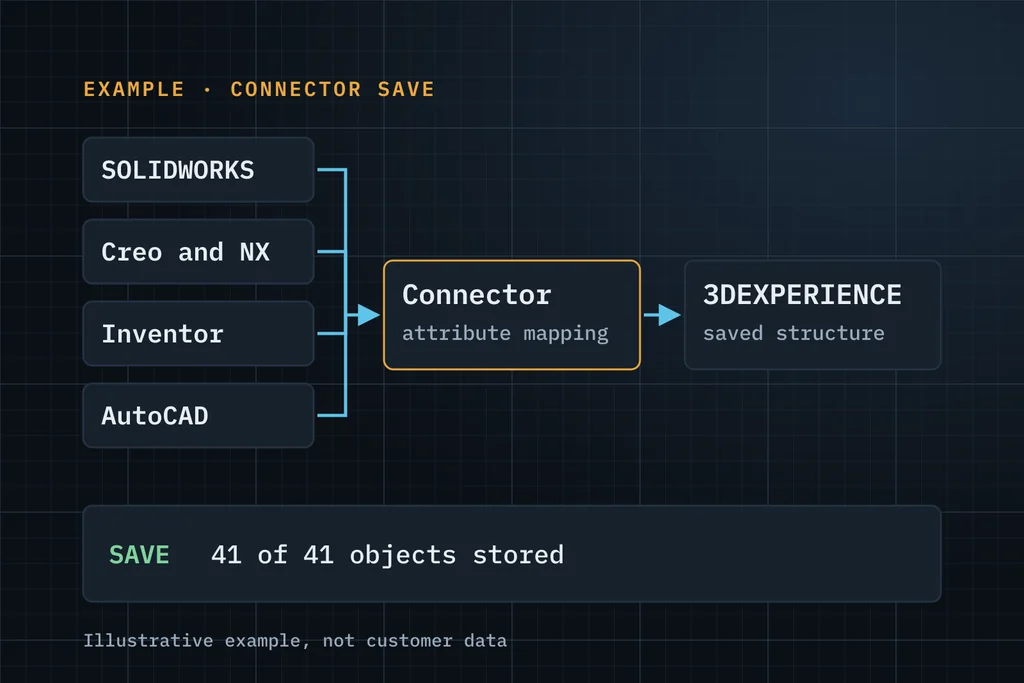
- Save to 3DEXPERIENCE fails, or leaves a partial structure, from SOLIDWORKS, Creo, NX or Inventor
- The connector add-in doesn't load, or loses its session, after a CAD, Windows or FD update
- CAD custom properties and title blocks don't map to 3DEXPERIENCE attributes, or map the wrong way
- Objects stay reserved or locked, or revisions and maturity don't match what designers expect
- CATIA V5 data managed in 3DEXPERIENCE: broken links, duplicate part numbers or wrong structures after import
- AutoCAD drawings and their title-block data need managing alongside 3D data
From version check to a tested connector
Check compatibility
CAD version and service pack, connector level, and 3DEXPERIENCE release and FD, checked against Dassault Systèmes' documented compatibility.
Configure
Connector options, attribute and property mapping, naming, collaborative space and security context, and the desktop deployment.
Reproduce failures
Save, open, reserve and revise with a test assembly and drawing, capturing the client-side logs and the server response.
Hand over
Configuration notes, the mapping table and a short test routine to repeat after each CAD or platform update.
What you receive
- A compatibility check for each CAD client against your release and FD level
- Connector installation and configuration notes for your desktop deployment
- A mapping table for the properties and synchronisation directions that connector supports, tested on representative CAD data (for AutoCAD: drawings, blocks and external references as applicable)
- Findings for failed save, open or lock cases, with logs and steps to reproduce
Three ways to start
Start with free support
Up to 5 hours to understand the issue and tell you what to check or do next. No obligation.
Request free supportEssentials assessment Paid
A written problem statement, recommended next steps, a proposed scope and an effort estimate. You approve the fee before it starts.
Ask about an assessmentDiscuss a scoped project
Upgrade, migration, integration, customisation or configuration with a defined goal. We reply with questions, then a proposal.
Discuss a projectWhat to include in your first message
- Which CAD system and version, and which connector
- 3DEXPERIENCE release and FD, cloud or customer-managed
- The operation that fails (save, open, reserve, revise) and the error text
- Whether it fails for one file, one user or everyone
- Recent CAD, Windows or platform updates
A few lines are enough. Please leave out passwords, confidential CAD files and customer data.
Common questions
Which connectors do you work with?
The Collaborative Designer roles for SOLIDWORKS, CATIA V5, Creo Parametric, NX, Inventor and AutoCAD. What each connector supports (operations, mapping direction, deployment) differs, so we confirm it for your CAD version, release and roles first.
Do you sell connector roles or licences?
No. Roles and licences come from Dassault Systèmes or its partners. We install, configure and troubleshoot.
Can you move our existing vaulted CAD data into 3DEXPERIENCE?
Bulk migration from an existing vault is a separate, scoped piece of work. See data migration.
What happens after a CAD or platform update?
Connector, CAD and platform versions have to stay compatible. We leave a short test routine so your team can check save, open and mapping after each update.
Describe the failed operation, release and deployment.
Describe it in a few lines. If it's a good fit, we'll use up to 5 hours of free support to understand it and tell you plainly what to check or do next.