Slow CATIA assembly? 12 checks before you buy new hardware
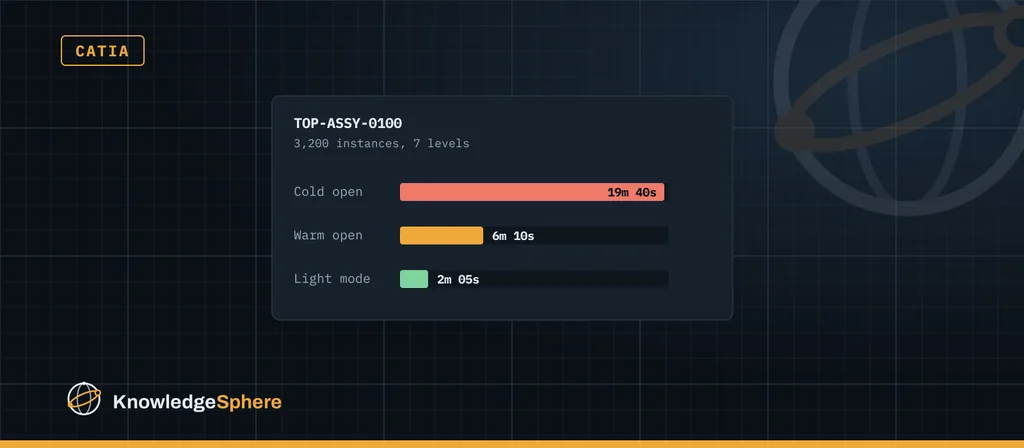
When a CATIA product takes 20 minutes to open, the first suggestion is usually a faster workstation. Sometimes that is the answer. Often the time goes on loading geometry nobody needs, reading a cache over the network, resolving links or transferring files from the platform, and those are cheaper to change.
Applies to: a diagnostic checklist for file-based CATIA V5 and for CATIA on 3DEXPERIENCE. The two differ, so checks 1 and 3 to 5 have separate branches. It is not tied to a tested release: menu paths and option names vary, so validate each step against the documentation for your installed release before changing a setting.
1. Define the test before you time anything
Pick one product, one workstation and one user. Record the release and update level (V5 release, service pack and hotfix, or 3DEXPERIENCE release and FD), the dataset, the loading mode and whether CATIA was restarted between runs.
File-based CATIA V5: record the configured CGR cache path, then point it at a separate test cache directory. Compare runs with that directory initially empty against the same directory after the CGRs have been generated. Record loading mode and session state separately, because operating-system and file caches also make a second open faster.
3DEXPERIENCE CATIA: follow your release's documented cache-management procedure rather than deleting a working cache.
A first open after restarting CATIA is not automatically "cold", and a faster second open doesn't by itself prove the CGR cache was the reason. Without defined conditions, two timings can't be compared.
2. Time operations separately
Time open, expand of a large sub-assembly, save and a drawing update as separate numbers. A slow open and a slow drawing update usually have different causes.
3. CATIA V5: check Cache Management
In V5, the product-structure options (Tools → Options → Infrastructure → Product Structure → Cache Management) control whether the cache system is used, where the cache lives and its size. A cache on a network drive or a slow disk costs time on every open. Point it at a fast local disk with enough space, and don't clear it more often than needed.
3DEXPERIENCE CATIA: record the client level, the data-loading options and the file-transfer path for your release before changing any cache setting. Behaviour depends on the release and how your platform is deployed.
4. CATIA V5: compare CGR Visualisation Mode with Design Mode
Design Mode loads editable geometry for every reference opened that way. Visualisation Mode with CGR shows the shape from lighter representations. Compare the measured cost of each under recorded conditions, then agree a default for large products and teach designers to switch the parts they edit to Design Mode.
3DEXPERIENCE CATIA: compare the representation-loading options available in your release in the same way, under recorded conditions.
5. CATIA V5: check CATSettings are consistent
Different defaults on different machines make timings meaningless. Check whether the loading and cache options come from a controlled CATSettings environment or from each user's own settings. One team's "slow" workstation is sometimes just a different setting.
6. Open less of the structure
Most designers don't need the whole product at once. Open the sub-assembly being worked on, or use filters and selective loading to bring in only the relevant branches.
7. Look for heavy purchased parts
Supplier models can carry threads, embossed text, internal features and thousands of faces. A handful of these in a large product can dominate load time. Replace them with lighter representations that keep the envelope and interfaces.
8. Count unique references, not just instances
Hundreds of instances of one fastener are not hundreds of copies of its geometry: reused references and instances have different memory, storage and display costs. Count unique references and instances separately, then look at which unique references are heavy.
9. Check links and references
In file-based V5, links broken by renaming, moving or replacing files can make CATIA search before it gives up. Fix the links rather than living with the delay.
10. Check update behaviour
If constraints, publications or drawing views update automatically on open, every open pays for a recalculation. Check whether updates run automatically or on demand, and agree what makes sense for large products.
11. Compare sites and workstations
On 3DEXPERIENCE, opening data depends on the transfer path from the platform. If one site is much slower with the same data and loading mode, the network path or local configuration is a better suspect than CATIA itself. On any setup, confirm that the graphics card and driver are a supported combination for your release, that the machine isn't short of memory, and that antivirus isn't scanning the cache folder on every read.
12. Ask what changed
If the product used to open quickly, find out what changed around the time it slowed down: a release, service pack or FD, a large data import, a new site, a network change or a new security tool.
Change one thing at a time
After each change, repeat the timings from step 1 under the same conditions. A faster second open shows that something differed between the runs; cache, file transfer, conversion and operating-system caching can all contribute. Changing one condition at a time is the only way to know which one mattered. Keep what helps, undo what doesn't, and write the final settings down so new starters get them too.
If you have a product like this today, describe it in a few lines: release, size and which operation is slow. It's exactly the kind of issue a free support session is for.